

How to set up event livestream recording
Itdown Stream Recorder is built for people who need a simple way to record livestreams, online lessons, webinars, meetings, event replays, and VOD sessions they are allowed to keep. The goal is a clean local archive: clear files, retained subtitles where available, and stable long-session recording.
Before starting, confirm that your use is permitted by the content owner, event organizer, meeting policy, and the source service rules. Itdown does not grant content rights; it gives you a recording workflow for sessions you are authorized to save.
Recommended recording workflow
- Open the authorized page or session in Itdown.
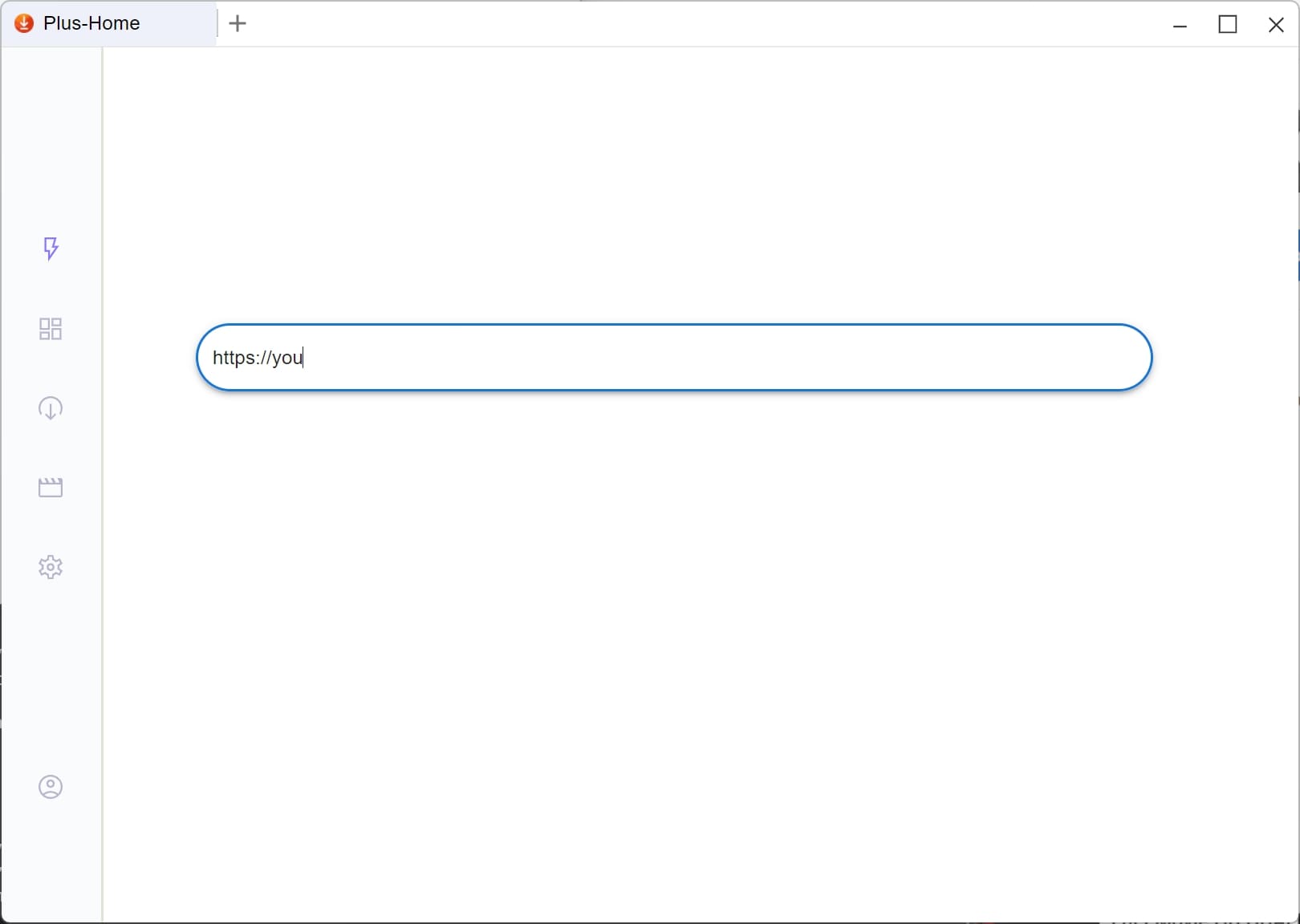
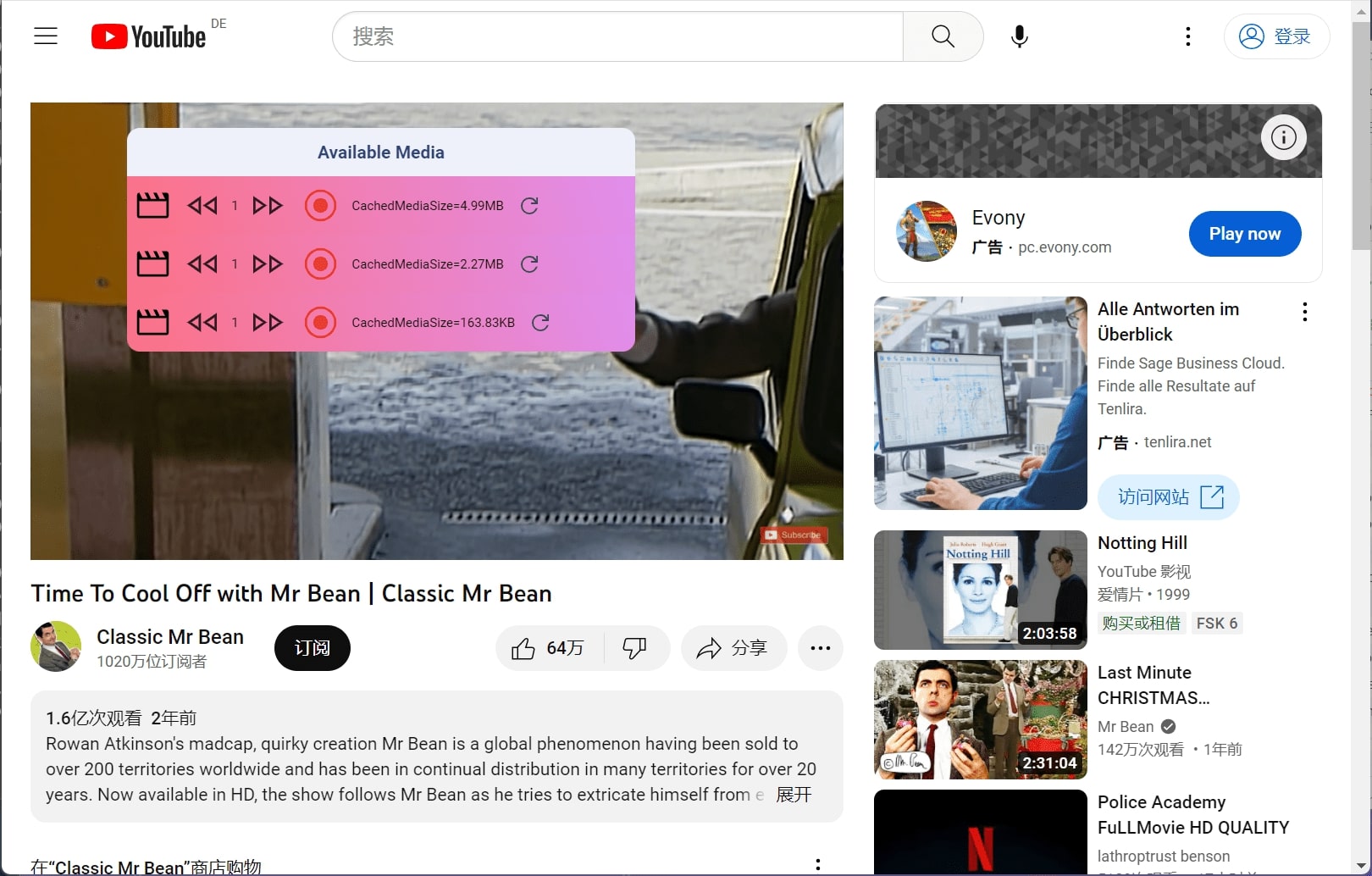
- Wait for the media list to detect playable sources.
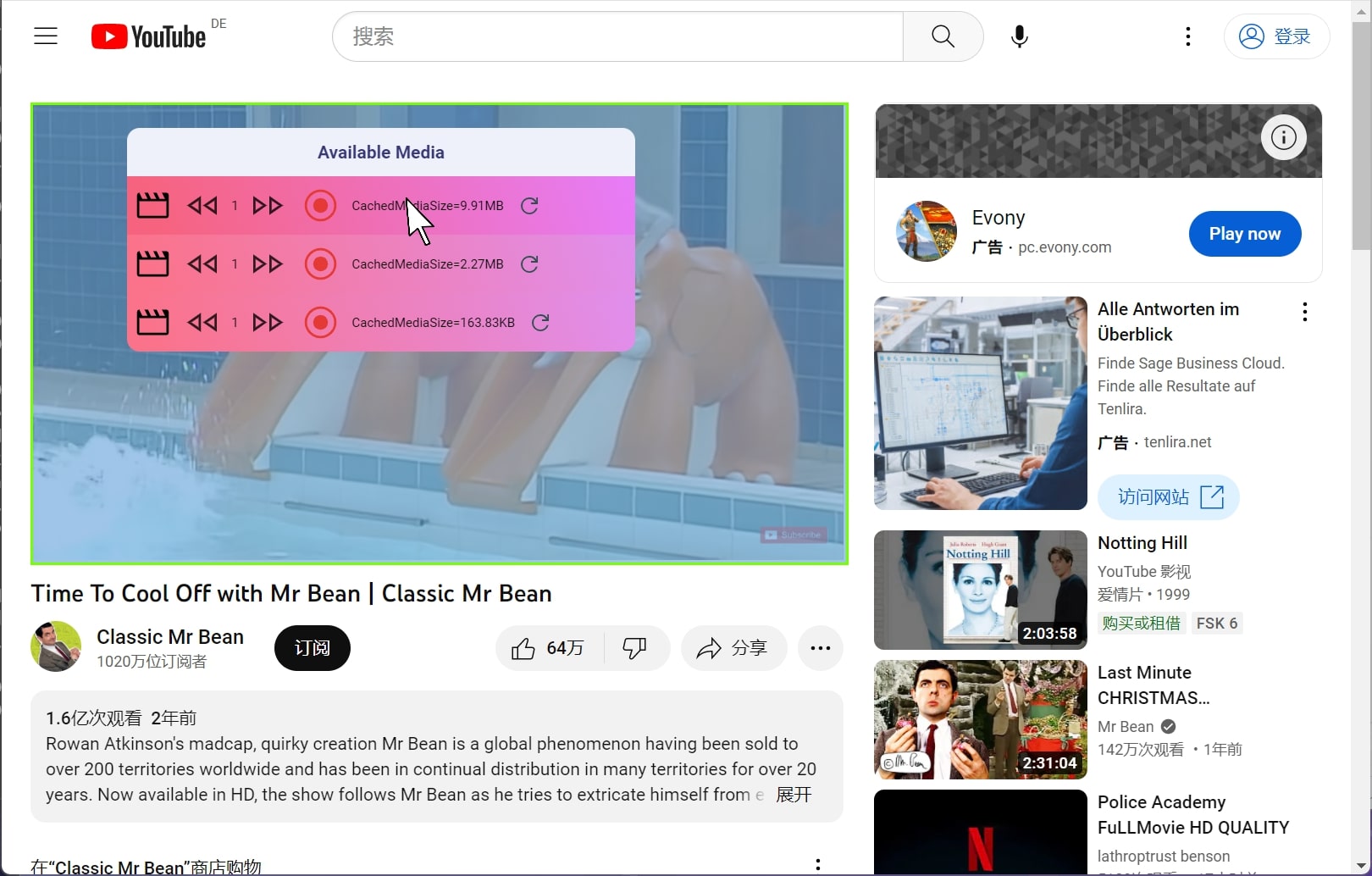
- Select the source you want to record and confirm the quality preset.
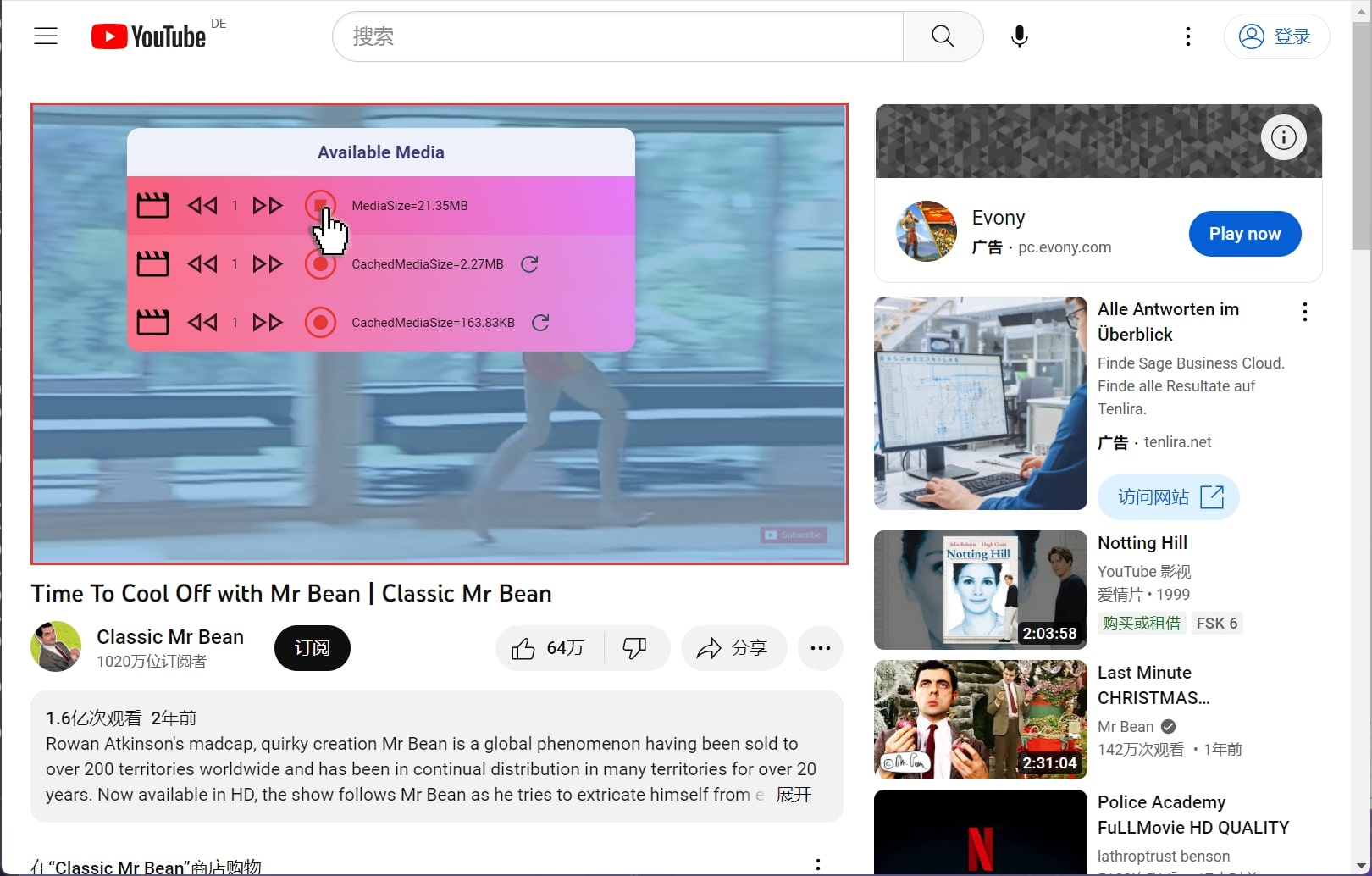
- Start recording and keep the session open until the content finishes.
- Review the saved file in your local library and rename it with a clear project, date, and topic.
Settings that help long sessions
- Use hardware acceleration when recording high-resolution video.
- Choose a storage location with enough free disk space before starting.
- Enable auto-splitting for long events so files stay easy to manage.
- Keep subtitles and metadata when they are available for your session.
- Run a short test recording before an important webinar, course, or event.
When to use this workflow
This workflow fits recurring training calls, webinars, online classes, livestreams, VOD review, internal events, and personal study archives. For private meetings, restricted events, or third-party content, record only when you have the required authorization and notice.
Itdown Stream Recorder keeps the process focused: open the authorized source, pick the playable stream, record, and organize the result for later review.